You might be wondering what a service principal is and what could be its use cases in Microsoft Fabric Ecosystem.
In this article, we will dive into what a service principal is and what could be some of its use cases in detail.
Application registration: Before we jump to the service principal application, we need to first understand the requirements for creating the service principal application. The first step is to register an application in the Microsoft Entra ID.
The Official Microsoft documentation link
Steps to Register an application in Microsoft Azure Portal.
- Login to your azure portal.
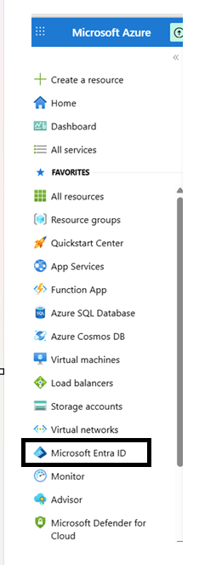
2. On your left pane, you will find Microsoft Entra ID. Click on the Microsoft Entra ID.
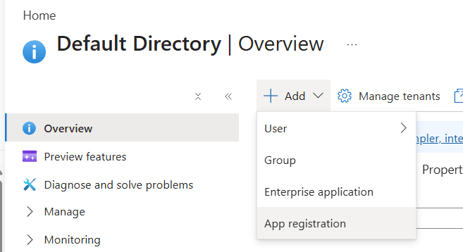
3. Click on the +Add button and select App registration from the drop down menu
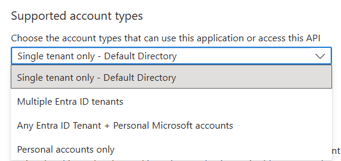
4. After you click on the the App registration option, you will be taken to a new page where you will fill in the name of the application. Give an appropriate name for your application. Select Single tenant only – Default Directory. Most commonly used one.
5. Other available options for Supported account types:
6. Redirect URI (optional): it is an optional step as the name suggests.12. Should look something like this:
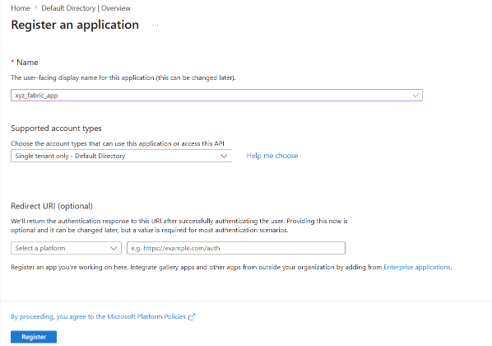
7. Click on Register to register your application. Once the registration is complete, you will be able to see the important information about the application, such as Client ID, Object ID, and Tenant ID.
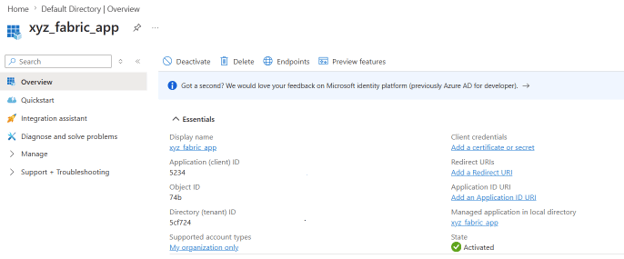
8. Client ID, Object ID, and Tenant ID has been edited for security reasons. You would be able to see alpha numeric characters for them.
9. Next step is to generate the Client credentials/client secret. Click on Add a certificate or secret option. 18. Once you click on that option, you will be taken to a new page called Certificates & secrets:
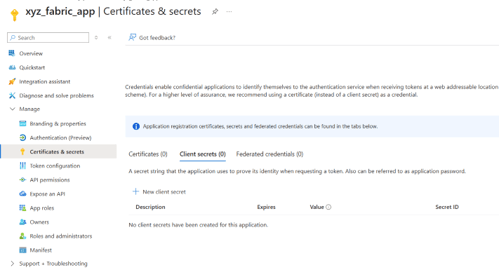
10. click on + New client secret button. 20. You will see a new window pop up, fill up the description with the suitable description and select the appropriate expiration date of the secret.
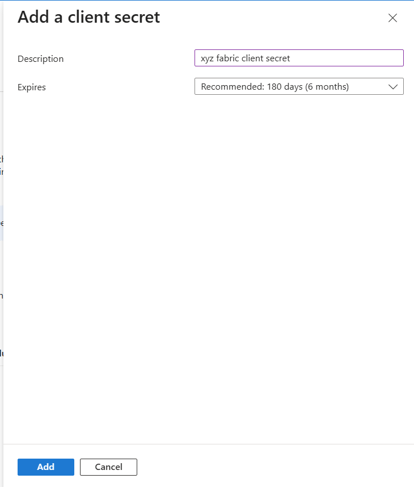
11. You would be able to see different expiration dates options.
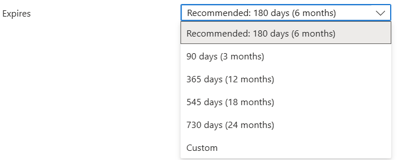
12. As the best practice, it is recommended to select the 180 days first option and change the client secret after 180 days. It is optional and you may choose to other options as well.
13. 23. Once you click on add, you will see the client secret information with Value and Secret ID.

14. Click on the icon below value and copy the client secret information and save it in a secure location (Key Vault Secret). The Application Registration process is now complete.
Once you register the application in your Microsoft Entra ID, it creates an identity configuration for the application that you just created. Once you complete the application registration process you now have an Unique ID for your application i.e. Client ID and Client Secret which acts as your username and password of the application.
Use Cases of Service Principal Application.
Now that we have created the service principal application by completing the above process. We will focus on granting the application required permissions so that we will be able to utilize the the service principal to its full extent in Microsoft Fabric.
Service Principal Object: In the Microsoft Azure Tenant, there could be multiple entities and resources which is secured under the Tenant ID. In order to access any resources via application that we have created, it must be represented by a security identity. The security identity/criteria will control all the access policy under the API permissions for the application in the Tenant ID. This will help to control the authentication of the application during the sign-in process.
The service principal that we have created is nothing but a local representation or a managed application in a local directory of the Azure Tenant. The service principal object defines the capability of the application in that tenant, who is able to access the application, what resources will the application have access to.
Among various api permissions available for the application across all the resources in the Tenant ID, a service principal object is then created. Ultimately, when an application is registered a service principal is automatically created by default.
API Permissions
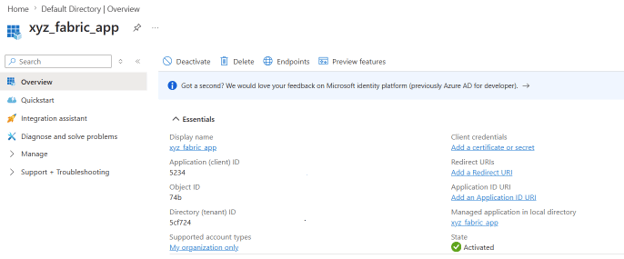
Click on the Manage option at the left pane to expand other options. You will be able to see API Permissions.
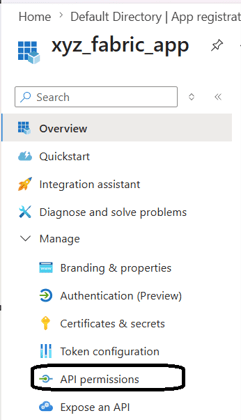
Click on the API permissions to configure permissions to the application.
REFERENCE:
https://learn.microsoft.com/en-us/entra/identity-platform/quickstart-register-app
Publisher : Janak Mali
Disclaimer : The author is not responsible for errors, omissions, or the accuracy, completeness, or suitability of the information provided. Use them freely with attribution. The website is not officially affiliated with Microsoft Corporation or any of its subsidiaries. All trademarks, logos and brand names are property of their respective owners.

